DNS configuration for Objects Endpoint IPs:
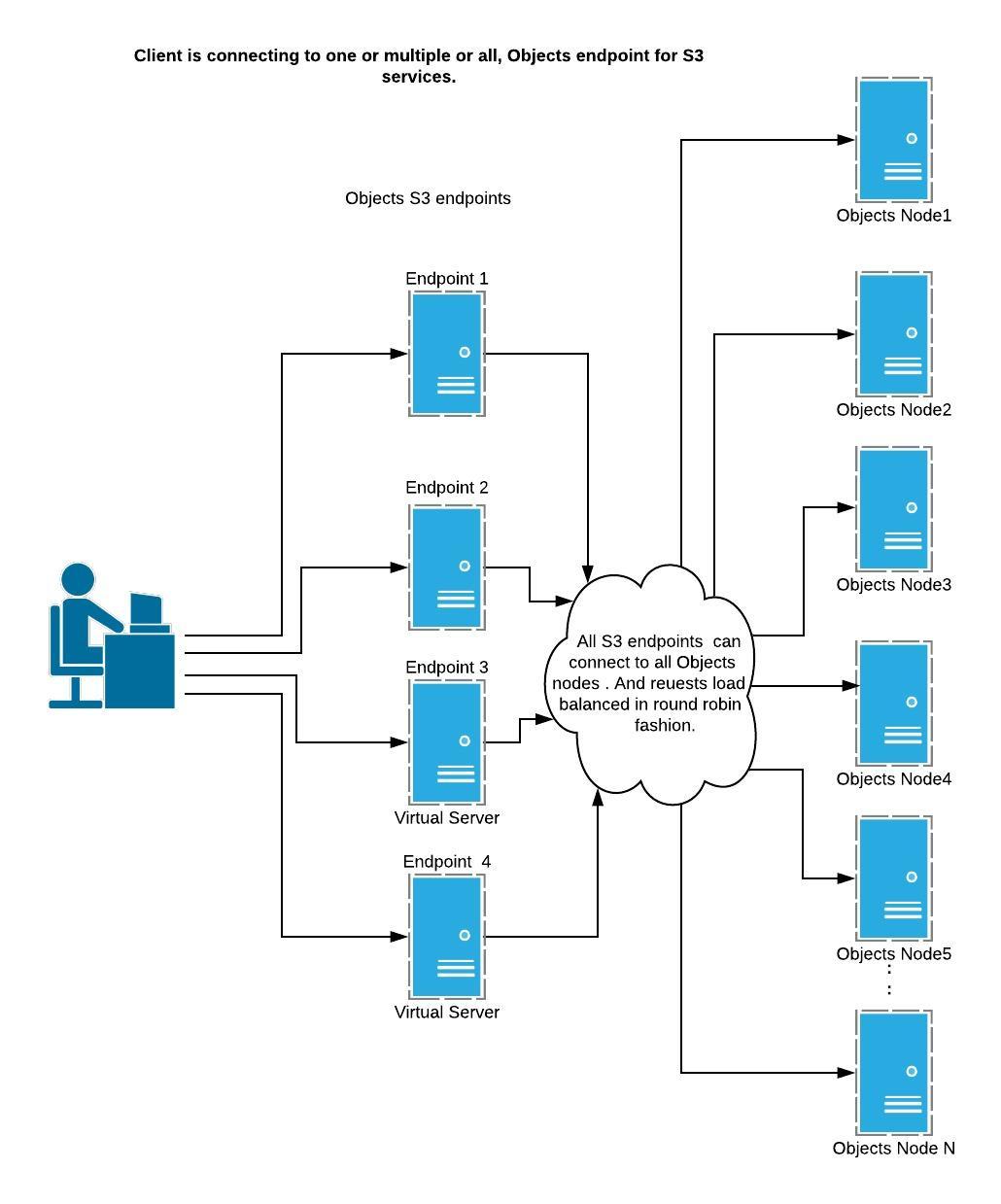
Objects deploys one to many load balancers which gives you protection against node failures, if any S3 endpoint goes down, you will always have other endpoints to reach your Objects cluster. You can access Objects S3 endpoint from any client access IP shown in Objects UI against Objects instance..
If you have multiple load balancer IPs, it’s going to be challenging to keep track of which IP is used for which workload. For example, you may have multiple backup workload and dev-ops workload running on same Objects cluster.
And if you use the same IP for all workloads or use multiple IPs but unevenly, then you may end up in choking one load balancer with too many requests which will impact the performance.
To simplify this, you can optionally use DNS load balancer. Update these IPs in your DNS server and start using FQDN to access your Objects S3 endpoint instead of the IP address.
In order to achieve that, you should whitelist all the client access IPs against the subdomain name that you used for your Objects deployment.
For example
My Objects Instance name is: Demo
Domain Name (I used): payroll.scalcia.com
Your DNS entry should look like:
demo.payroll.scalcia.com. IN A 192.168.0.1
demo.payroll.scalcia.com. IN A 192.168.0.2
demo.payroll.scalcia.com. IN A 192.168.0.3
demo.payroll.scalcia.com. IN A 192.168.0.4
Here I have 4 client access IPs pointing to the demo.payroll.scalcia.com, DNS uses round robin algorithm to load balance requests by default.
There are two ways you can access your bucket via Path Style & DnsStyle.
- Path Style : accessing bucket using http://demo.payroll.scalcia.com/bucket_name path.
- DNS Style : accessing your bucket via http://bucket_name.demo.payroll.scalcia.com i.e using fully qualified domain name. This feature is called - “Virtual Hosting of Bucket”
For Virtual Hosting of Bucket, you will also need to make sure your DNS can resolve every bucket name. So, whitelist all the client access IPs using the wildcard (*).
Add below entries as well to your DNS server:
*.demo.payroll.scalcia.com. IN A 192.168.0.1
*.demo.payroll.scalcia.com. IN A 192.168.0.2
*.demo.payroll.scalcia.com. IN A 192.168.0.3
*.demo.payroll.scalcia.com. IN A 192.168.0.4
Pros and Cons of using DNS load balancer
- Pros:
- DNS server has default load balancer, and it can route requests to all the IPs whitelisted against particular name in round robin fashion.
- It can also detect if one path is down and if it has to re-route all the requests to healthy IP. (Do check these setting and make sure its configured according to your requirement)
- Cons:
- This can increase the load on your DNS server.
- DNS server by default has higher TTL: This means that once client gets name resolved, it will continue using that IP as S3 endpoint until TTL is reached. This may work for most of the workloads. But if you have noisy client, then you may end up in overloading one Objects S3 endpoint more while keeping other endpoints less loaded. This may impact client’s performance.
- You can set the lower TTL. But this can further increase the load on your DNS server. If you are using a common DNS server, then it may affect the other services due to the noisy S3 clients hitting DNS servers more often. For example, Dev-Ops workload.
Depending on the use case, you may have to run a few experiments to find out the right value and trade off between low TTL vs load on DNS server. You can have a dedicated DNS server which can be deployed near the Objects cluster.
Explore all the options a DNS load balancer gives you so that this can be optimized for your workload.
.